Open Safari and visit CarSee
On your iPhone or iPad, open Safari and go to app.carsee-ai.com. Sign in with your CarSee account when prompted.
CarSee runs as a secure web app at app.carsee-ai.com. Add it to your Home Screen for quick, full-screen access — the same inspection workflow, optimized for iOS.
Use Safari on iPhone or iPad. “Add to Home Screen” is available in Safari only. If you opened this page in Chrome, WhatsApp, or another in-app browser, copy the link and open it in Safari first.
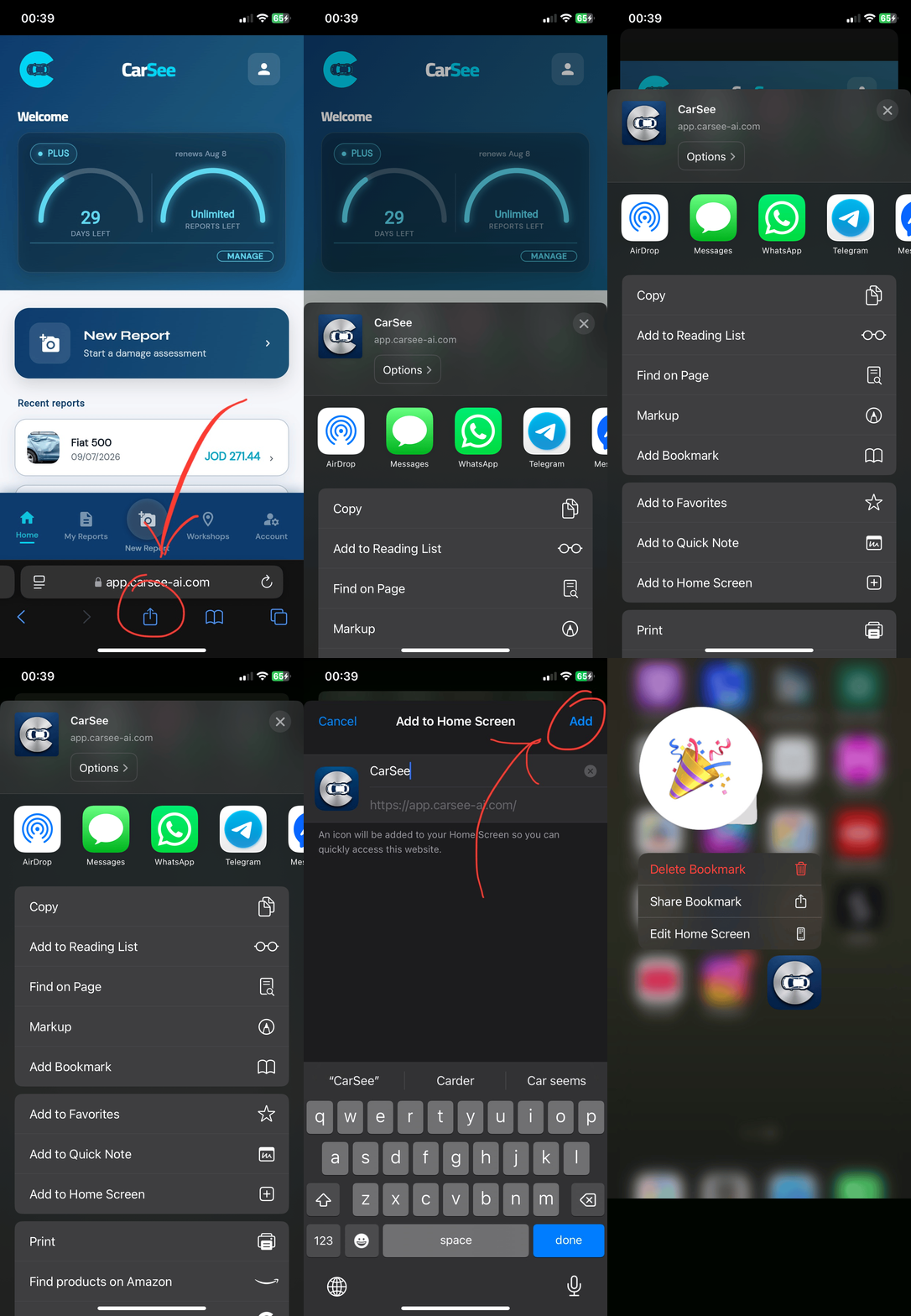
On your iPhone or iPad, open Safari and go to app.carsee-ai.com. Sign in with your CarSee account when prompted.
At the bottom of Safari (or top on iPad), tap the Share icon — a square with an arrow pointing upward.
Scroll down the share sheet and tap Add to Home Screen. You can edit the name if you wish — “CarSee” is recommended.
Tap Add in the top corner. The CarSee icon appears on your Home Screen. Open it anytime for a full-screen app experience.
Launches without the Safari address bar for a focused inspection workflow.
Keep CarSee alongside your other professional tools on the Home Screen.
Guided capture, AI damage analysis, bilingual PDF reports, and account sync.
CarSee on iOS is delivered as a web app. There is no App Store install required — you add app.carsee-ai.com to your Home Screen using Safari.
Yes. Follow the same steps in Safari on iPad. The Share button is at the top of the screen on most iPad models.
For installation, use Safari. After CarSee is on your Home Screen, always launch it from that icon for the best experience.
Contact us via the Contact page or email carsee.ai@gmail.com.